Autotracker

When a video feature of interest has a consistent shape, size, color and orientation in all video frames, it can be tracked automatically using autotracker. This eliminates the need to mark each frame manually with the mouse, thus speeding up the tracking process and producing more consistent data.

Tip: an excellent way to obtain videos suitable for autotracking is to stick colored circular markers on the objects of interest (a white ring around a colored center is even better). Multiple objects can be autotracked, one at a time, if a different color is used for each.

Click the autotracker button on the toolbar to show or hide autotracker.
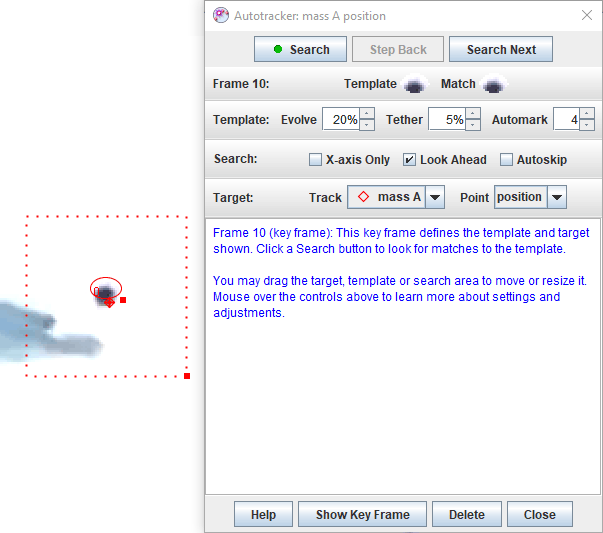
autotracker key frame

Fig. 1 Autotracker

1. How autotracker works

Autotracker works by creating one or more template images of a feature of interest and then searching each frame for the best match to that template. The best match is the one with the highest match score, a number that is inversely proportional to the sum of the squares of the RGB differences between the template and match pixels. Once the best match is found, it is compared with nearby match scores to determine an interpolated sub-pixel best match position.

The template shape may be elliptical or rectangular. By default, the template evolves to adapt to shape and color changes over time. Higher evolution rates track more rapid changes, but may result in template "drift" over many frames. Template evolution works by compositing the match image with the existing template to form a new template. To limit drift, tethering may be used. Tethering works by compositing the original keyframe image with the existing template after evolving.

A target defines the position at which points are marked relative to the template when matches are found. The target may be offset from the template. The specific track and point to be marked at the target position must be selected prior to autotracking.

A video frame in which a template and its associated target are defined is called a key frame. Autotracking requires at least one key frame, but additional key frames may be defined to track sudden or extreme changes in the object, background or illumination.

When a match score is higher than the automark level, a point is automatically marked at the target position. The automark level may be set by the user.

A match score that is lower than the automark level is considered a poor but possible match. There can also be frames where no match at all is found. Under these conditions the autotracker will normally stop and await user action. You can set the conditions for which it stops to (a) poor/no match, (b) no match only, or (c) never.

Autotracker limits its search for a match in each frame to a user-defined rectangular search area. By default, when at least two steps have been marked the velocity and acceleration of the point mass is used to predict the position of future matches and the search area is moved accordingly. However, you can change this look-ahead positioning to either follow-along (search area is moved to the previous match position) or fixed (search area is not moved at all). You can also reposition or resize the search area with the mouse at any time.

You can also limit the search to the x-axis only for 1D autotracking. Set the axis origin and tilt angle to search along any desired line.

After autotracker has completed the marking process, you may modify the steps at will. In other words, autotracker helps you mark the steps but does not limit your control over them.

2. Preparing to use autotracker

Before using autotracker, scan through the video and verify that the feature of interest is visible and reasonably consistent (shape, size, color and orientation) in all frames. If not, adjust the video clip start frame, end frame and/or step size until this condition is met. Then reset the video to the start frame.

By default, autotracker searches for and marks points at video playback speed with live plots and tables. This is useful when you want to watch the data unfold. You can adjust the video playback speed with the rate spinner on the video player. If you don't need live data, choose Fast mode to search at maximum speed without refreshing plots and tables.

3. Using autotracker

  1. Select the target track.
  2. Shift-control-click the video feature of interest to create a key frame. This will display autotracker if it is not already visible.
  3. Change the default settings if desired.
  4. Click the Search button.

Figure 1 (above) shows autotracker after creating a key frame using the default settings. The template is outlined on the video and shown at 2x magnification in autotracker along with the (perfect) match found. The target point is indicated by a bold cross on the video and the search area is outlined with a dashed line.

4. Settings and controls

Controls are organized into the following categories. To learn more about a specific control or setting, simply move the mouse over it.

Search buttons:

  1. The Search button steps through the video, searching and marking each frame as it goes. Hold down the Shift key for more options as discussed below.
  2. The Step Back/Search This button is context-dependent and changes its text accordingly. Most of the time it is a handy step-back button. But if a frame has no marked step or you change the search area with the mouse then it lets you search the current frame. It is often used to repeat a search after adjusting the search area if a match is not found on the first pass.
  3. The Search Next button makes a single step forward, searches that frame, and stops. It is useful when you want to review each match before moving on to the next.

Template: The template is the image to be matched.

  1. Move or resize the template by dragging its center or handle (small solid square), respectively. You can also resize it using the Width and Height fields. Tip: the template need not be large nor include the whole object. A feature that is unique and includes high-contrast edges generally works best.
  2. The template Shape is elliptical by default. Switch to a rectangular shape if desired.
  3. Set the Evolve rate to define how the template adapts to shape and color changes. An evolution rate of 0% does not evolve at all (constant template image) while an evolution rate of 100% completely replaces the template with the match image after each frame. Intermediate evolution rates overlay the match image onto the current template with the indicated opacity. Note: higher evolution rates track more rapid changes, but may result in template "drift" over many frames.
  4. Set the Tether rate to limit template drift. A tether rate of 0% does not tether at all (template image may drift) while a tether rate of 100% completely replaces the template with the keyframe image after each frame and is thus equivalent to 0% evolution. Intermediate tether rates overlay the keyframe image onto the current template with the indicated opacity.
  5. Set the Automark level to define the minimum match score needed for automatic marking. The default level of 4 is recommended as a good starting point. Tip: low automark levels can result in false matches--try increasing the evolution rate or defining additional key frames instead.

Search: The search area defines the region that is searched for the best match.

  1. Move or resize the search area by dragging its center or handle (small solid square), respectively. Tip: The search area need not be large. For many motions the look-ahead feature does a good job of predicting match positions and searching in the right place.
  2. Speed: check Fast to search at maximum speed without refreshing plots and tables. Leave unchecked to search at video playback speed with live plots and tables. Adjust video playback speed with the rate spinner on the video player.
  3. Set the search positioning action to Look-Ahead, Follow-Along or Fixed. Look-Ahead will automatically move the search area to predicted match positions using a look-ahead algorithm that assumes constant acceleration. Follow-Along will move the search area to the previous match position. Fixed keeps the search area fixed in it's current position.
  4. Check the X-axis checkbox to limit the search to the x-axis only. The coordinate system origin will automatically be set to the center of the template. Tilt the axes to search in the desired direction. Note: if the x-axis does not pass through or near the center of the search area, no matches will be found.

Stop: The stop setting determines when the autotracker will stop and await user action.

  1. Set the stop conditions to (a) Poor/No Match, (b) No Match only, or (c) Never stop.

Target: The target defines both the track and point to be marked and the position of the mark relative to the template.

  1. Select the target track and point from the drop-down lists.
  2. Move the target by dragging it.

Other buttons:

  1. The Help button shows this help file.
  2. The Show Key Frame button enables you to quickly jump to a key frame to review and/or change the template or target.
  3. The Delete button enables you to easily delete incorrectly marked points.
  4. The Copy Match Data button copies match data (frame numbers, non-null match scores and positions) to the clipboard. (Note: match data cannot be displayed in Tracker data tables because they are generated by templates, not by tracks.)
  5. The Close button closes autotracker.

5. Search results

After searching a frame, autotracker will display one of the following search results and, in some cases, present options for solving problems.
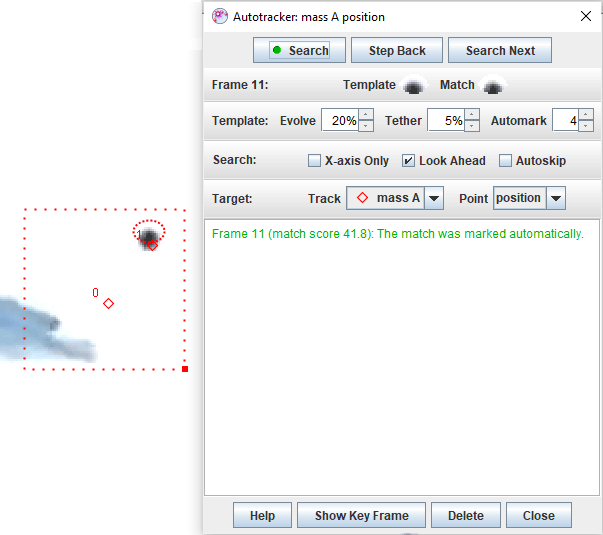
  1. A good match was found (match score above the automark level) and marked automatically (Figure 2).
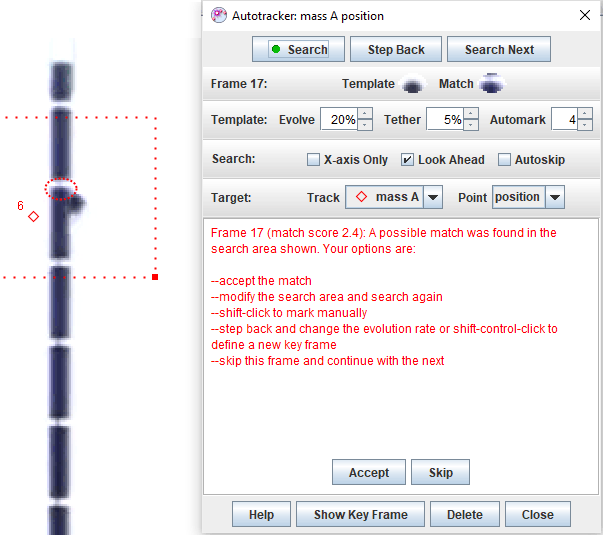
  2. A poor/possible match was found. Options include accepting the match, marking the point manually (shift-click), making changes and repeating the search, or moving on to the next frame (Figure 3).
  3. No match was found. Options include marking the point manually (shift-click), making changes and repeating the search, or moving on to the next frame.
  4. Unable to search. This can happen if the search area falls outside the video image. Options include marking the point manually (shift-click), making changes and repeating the search, or moving on to the next frame.

successful search

Fig. 2 Search results: good match

possible match

Fig. 3 Search results: poor/possible match (false match in this case)